FAQ
Updates
All my devices are already up to date — what should I see?
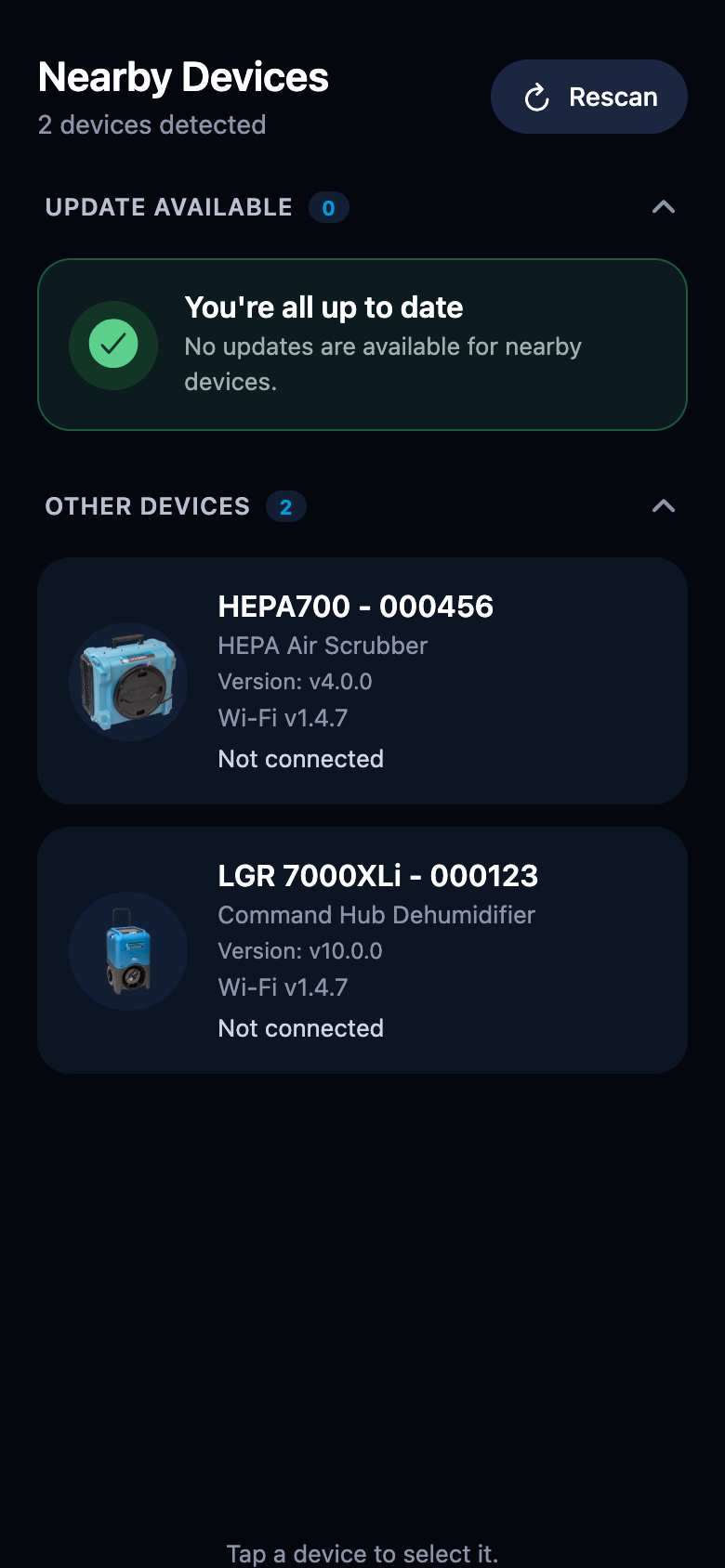
A card that says "You're all up to date" — "No updates are available for nearby devices." That's the goal state: nothing to install.
Your devices sit under Other Devices (tap the section title to expand it), each showing its current version, such as "Version: v10.0.0".
What happens if an update fails partway through?
Your device keeps running the firmware it already has:
- The new firmware is transferred alongside the running one.
- The device checks the transferred file before switching over — an incomplete or corrupted transfer never replaces working firmware.
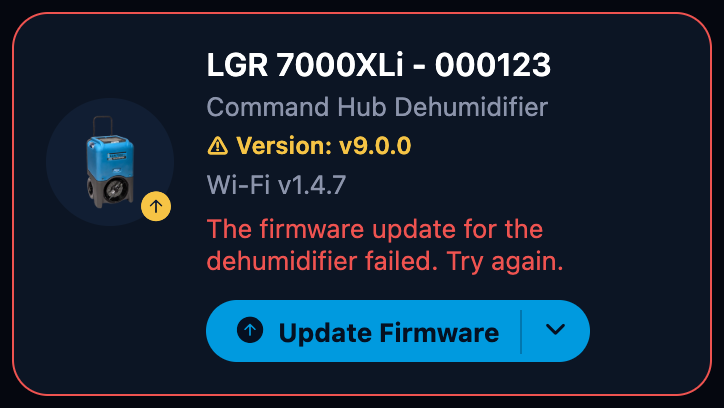
- The card turns red with the reason.
When you're ready, tap Update Firmware again; the update simply starts over.
My device disconnected mid-update — is it broken?
No. Disconnections happen — the device also restarts itself as a normal part of updating.
The app handles one drop on its own: it gives the device a few seconds to come back, reconnects, and restarts the transfer.
If it can't get the device back, it stops and tells you, for example "The dehumidifier was disconnected. Make sure it stays powered on and nearby, then try again." In that case:
- Move closer and check the device has power.
- Tap Rescan.
- Update again.
The progress bar seems stuck — how long is normal, when should I worry?
Normal, no action needed:
- Transfer speed depends on Bluetooth signal quality, so a slow stretch is normal — stay near the device.
- There's a natural pause when the device restarts to apply the update; the card border pulses amber while the app reconnects.
Act only when the app tells you something is wrong:
- A red card with an error message.
- A status stuck on "Connection lost — update queued" that never recovers.
In that case move closer and retry.
Can I update several devices at once?
Yes. Tap Update All Devices, or select specific devices and tap Update Selected.
The app works through the main firmware updates first, device by device, and then runs the Wi-Fi module updates as one group — asking for your Wi-Fi network once for all of them.
Do I need an internet connection on my phone to update devices?
Not for the update itself — firmware travels to the device over Bluetooth.
- The app uses your phone's internet when it starts, to check for and download firmware newer than what it ships with ("Checking for firmware updates…", "Downloading latest firmware…").
- No connection at the job site? The app still updates devices using the firmware built into it.
- If a download does fail, you'll see "Couldn't download the firmware file. Check the phone's internet connection and try again."
Is it safe to leave the app or take a call during an update?
Keep the app open and the phone near the device until the card reports "Successfully updated". If the connection is interrupted anyway, nothing is damaged — the app reconnects and continues, or tells you to try again (see the disconnection question above).
Wi-Fi setup
What if I don't have Wi-Fi at the job site?
Everything except Wi-Fi module updates works without it — finding devices, reading versions and status, and updating device firmware all run over Bluetooth.
- A Wi-Fi network is only needed when updating a device's Wi-Fi module.
- Internet on the phone is only used when the app fetches newer firmware at startup (otherwise it uses the built-in files).
I typed the wrong Wi-Fi password — what happens?
The device tries to join and fails; nothing else changes. The Wi-Fi Setup window stays open and shows "Device did not connect. Check credentials and try again." Tap Edit, fix the name or password, and tap Save & Connect again.
My network doesn't show up in the scan
Tap Rescan in the window — the device lists the strongest networks it can hear, up to 16, so a weak network can fall off the list. Moving the device closer to the router helps.
You can always type the network name yourself: as the app puts it, "No networks found. You can still enter a network name manually."
Hidden networks
Typing the name yourself is also the way to join a hidden network.
My network name has accents or special characters — will it work?
Yes. Network names and passwords are sent in UTF-8, so accented characters work. The limits are measured in bytes — 32 for the name, 64 for the password — and accented characters take more than one, which is why the app may warn: "SSID must fit in 32 bytes (accented characters use more than one)."
The app says my devices are on different Wi-Fi networks — what does that mean?
The alert "Different Wi-Fi Networks Detected" appears when the devices you selected have different networks stored: "The selected devices are on different Wi-Fi networks. They must all be on the same network before updating. Please enter the correct credentials." Enter the one network they should all use, and the app applies it to every selected device.
Finding devices
Why doesn't my device appear in the list?
Work through the causes in order:
-
Permission denied. If Bluetooth permission was refused, the app cannot scan at all and tells you: "The app doesn't have Bluetooth permission. Allow Bluetooth access in Settings and try again." Use Open Settings, or by hand:
- On iPhone: Settings → Dri-Eaz Sync → turn on Bluetooth.
- On Android: Settings → Apps → Dri-Eaz Sync → Permissions, then allow Nearby devices (and Location on older Android versions).
Return to the app and tap Rescan.
-
Power and range. The device must be powered on and near the phone.
- Bluetooth off. The start screen tells you before you even scan (see Find nearby devices).
- Connected to another phone. A device already connected elsewhere stops announcing itself, so it's invisible to everyone else. Close the app on the other phone (or disconnect the device there), then tap Rescan.
If nothing turns up at all, the app says: "No devices found. Make sure they are powered on and advertising, then try again."
Why does the app ask for Bluetooth (and on Android, location) permission?
Bluetooth is how the app talks to your devices — without the permission it can't scan or connect.
On Android, the system additionally ties nearby-device scanning to the location permission, so the app requests location, "Nearby devices" scanning, and connecting. It uses them only to find and update your Dri-Eaz equipment.
When the prompt appears, tap Allow; if it was denied, re-enable it in the phone settings (see the previous question for the exact path).
General
Which equipment does the app support?
| Platform | Models |
|---|---|
| Command Hub Dehumidifiers | LGR 2800i, LGR 3500i, LGR 7000XLi, REVOLUTION, CMC 200, PHD200, LGR145 XL, SYCLONE XL, LGR 6000Li, LGR 6500XLi, G18, DRIZAIR 1800, DRIZAIR 2200 |
| Wrap Series Dehumidifiers | DRIZAIR 1400, LGR 5000Li, DRIZAIR 130P |
| HEPA Air Scrubbers | HEPA700, AP 700 |
Which languages does the app support?
The app is available in three languages:
- English
- Español (Spanish)
- Français (French)
To switch between them, see How do I change the app's language?
How do I change the app's language?
The app follows your phone's language.
- Set the phone's language to one of the supported languages.
- Close and reopen the app — the language is picked once, when the app starts.
Regional variants and fallback
Any regional variant works — Mexican Spanish, Canadian French, and so on. A phone set to any other language falls back to English.
There is no language switch inside the app.
Can I use this from a computer instead of a phone?
Partly. The app also runs in a browser that supports Web Bluetooth (Chrome and other Chromium-based browsers; the browser shows its own device chooser when you scan).
Two real limits:
- Wi-Fi setup is not supported on the web, so Wi-Fi module work needs the phone app.
- The web version can't download newer firmware — it updates devices with the firmware built into the app.
For day-to-day work at a job site, the phone is the intended tool.