Understand device status
Each device found by a scan appears as a card in the Nearby Devices list.
Reading a device card
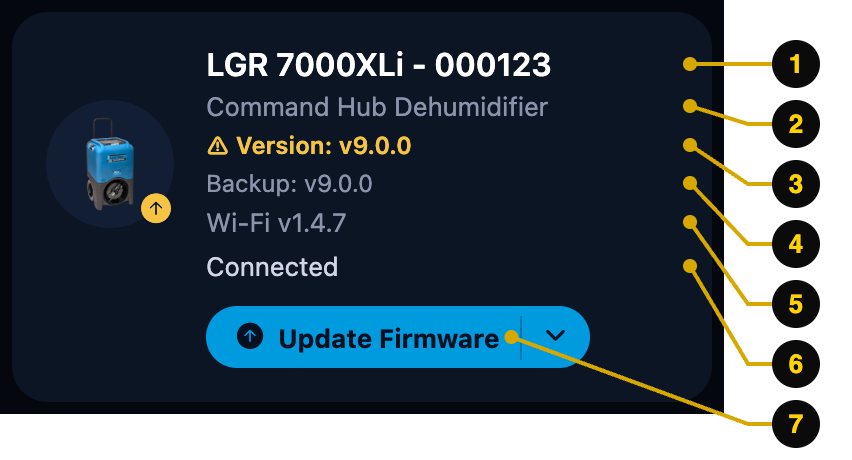
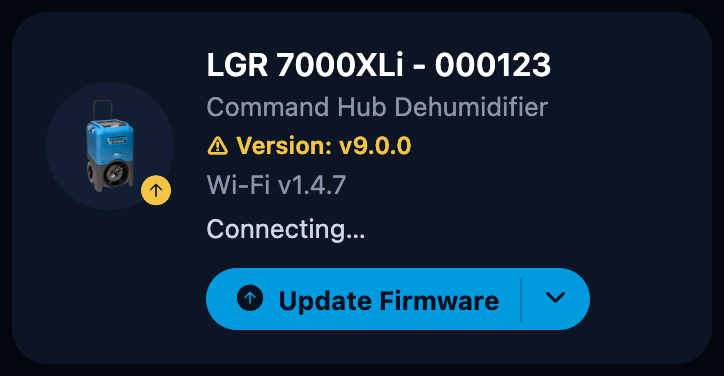
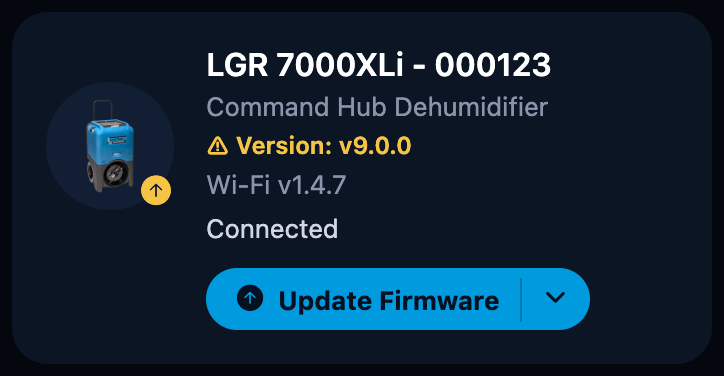
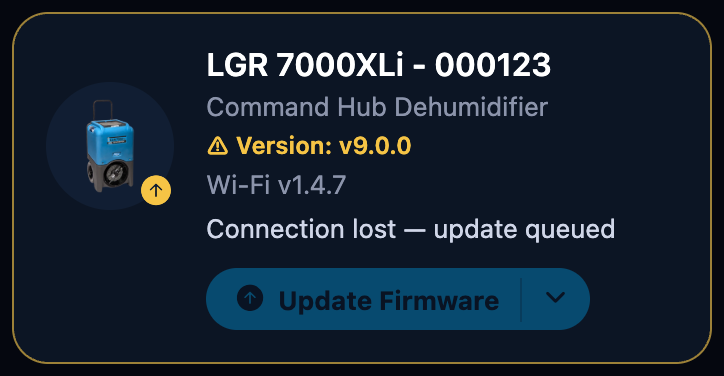
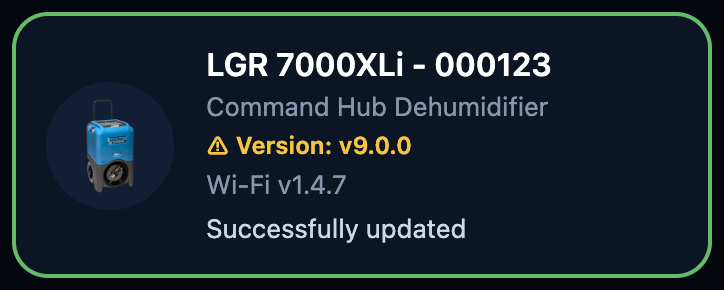
- Model and serial number — for example "LGR 7000XLi - 000123".
- Product family — such as "Command Hub Dehumidifier" or "HEPA Air Scrubber".
- Firmware version — the firmware currently on the device. A ⚠ in amber means it is outdated.
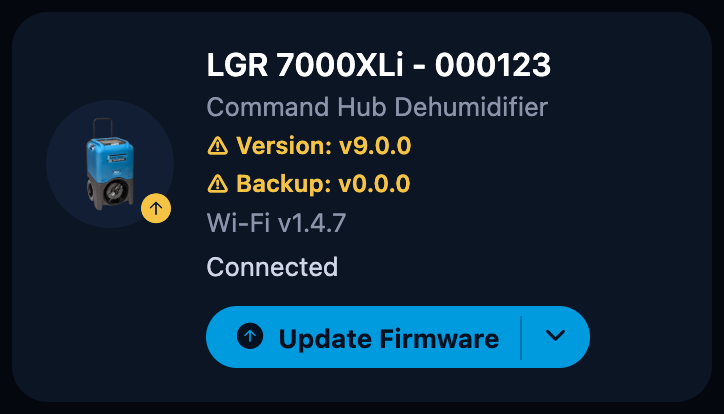
- Backup copy — the device's backup firmware, shown once the app has connected to it.
- Wi-Fi module version — when the device has a Wi-Fi module.
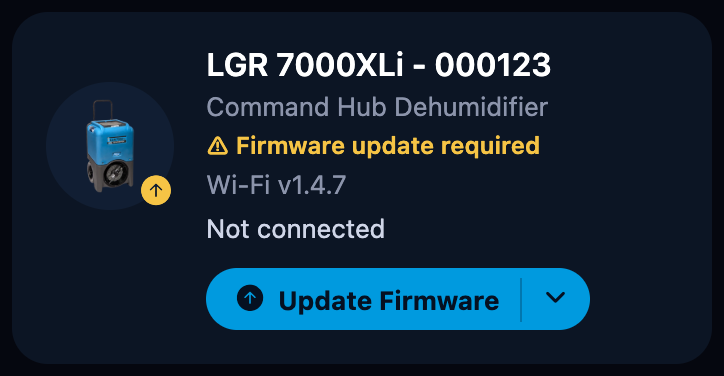
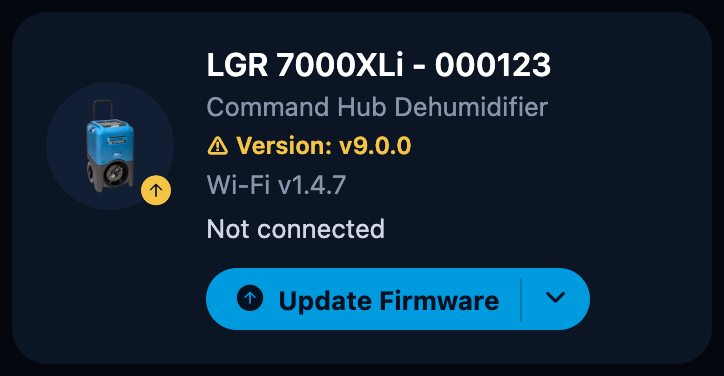
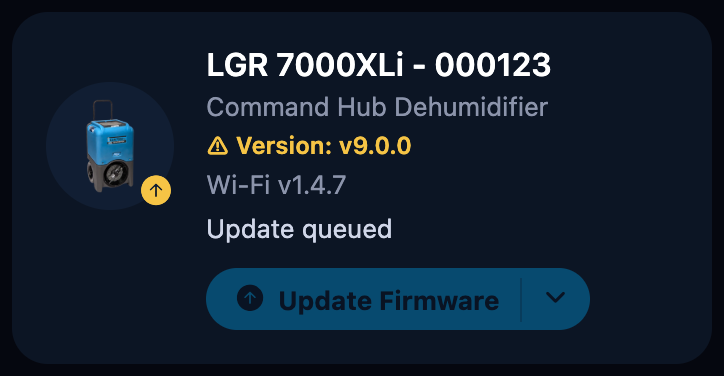
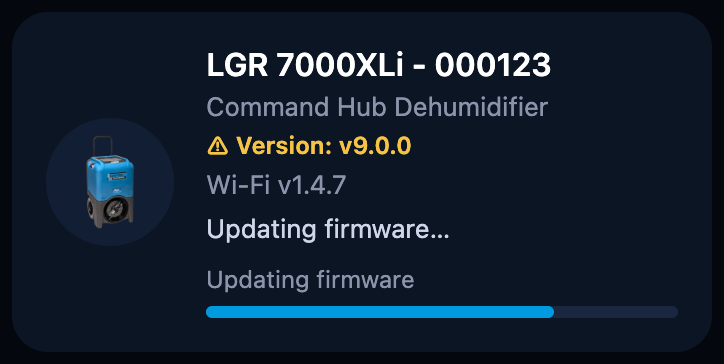
- Status line — what the app is doing with this device right now (see the table below).
- Update button — shown while a firmware update is available.
Two card states worth recognizing:
Status messages
The two sections
- Update Available — devices whose firmware (or Wi-Fi module) is older than the version the app carries. These cards show an Update Firmware button.
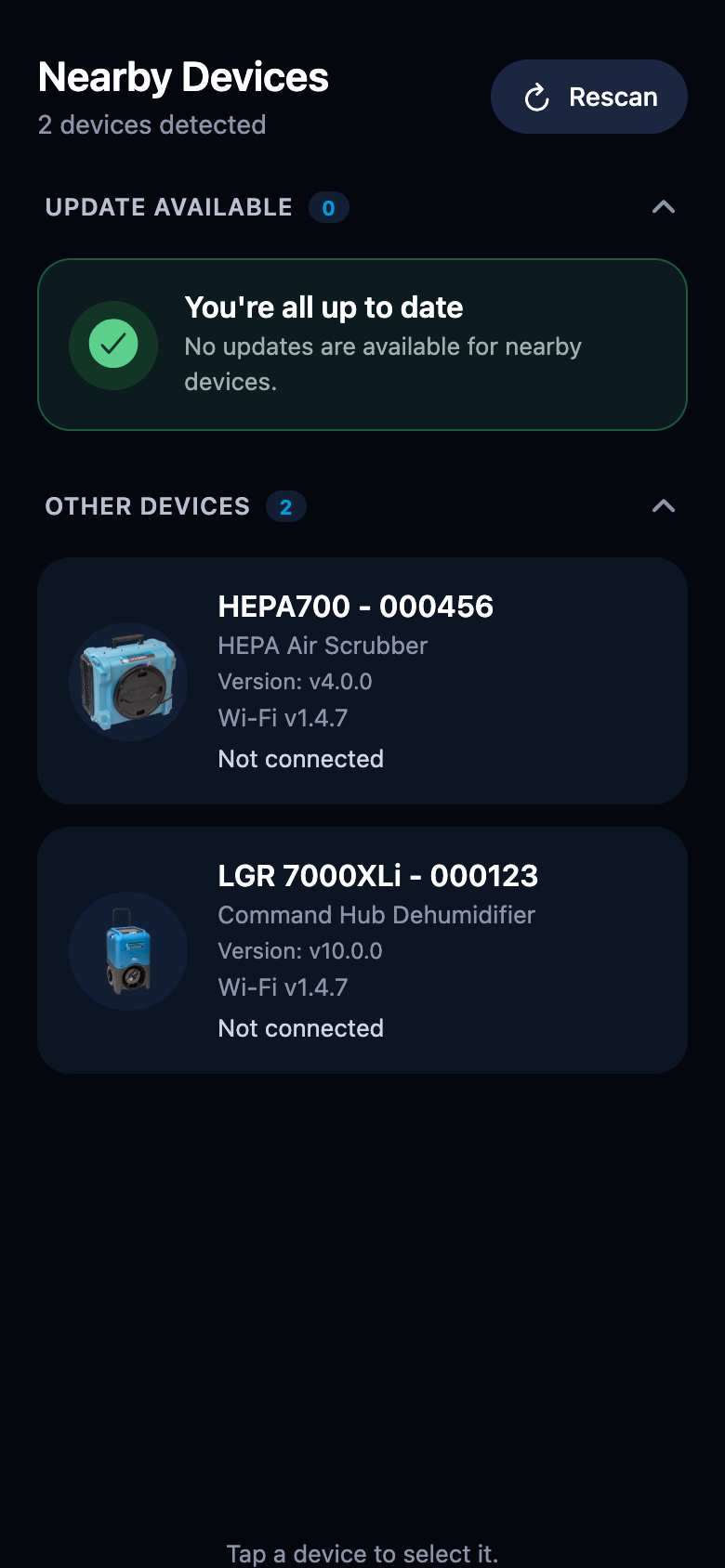
- Other Devices — devices that are already up to date. This section starts collapsed; tap it to expand.
When every nearby device is current, the list shows the up-to-date card instead:
Selection
Tap a card to select it for a batch update:
- A check mark appears on the card.
- The footer counts the selection, for example "2 devices selected".
- Selecting a device also connects to it, which fills in details like the backup version.