Update device firmware
Devices listed under Update Available have a firmware update ready to install. You can update one device, a selection, or all of them at once.
Update one device
-
Find the device's card in the Update Available section.
-
Tap "Update Firmware" on the card.
The small arrow next to it opens a menu with Update Main Firmware and Update Wi-Fi Module, in case you want to run only one of the two. The Wi-Fi module option is grayed out when that update isn't available in your setup.
-
Stay close to the device while the card walks through the steps by itself — see what happens during an update.
Update several devices at once
-
Pick what to update.
- Everything: tap Update All Devices at the bottom of the list.
- A selection: tap the devices first — a check mark appears on each and the footer confirms, for example, "2 devices selected" — then tap Update Selected.
-
Let the queue run.
Devices waiting for their turn show "Update queued". Tapping a selected card again deselects it.
What happens during an update
-
The app connects. The card status shows "Connecting…" and then "Connected".
-
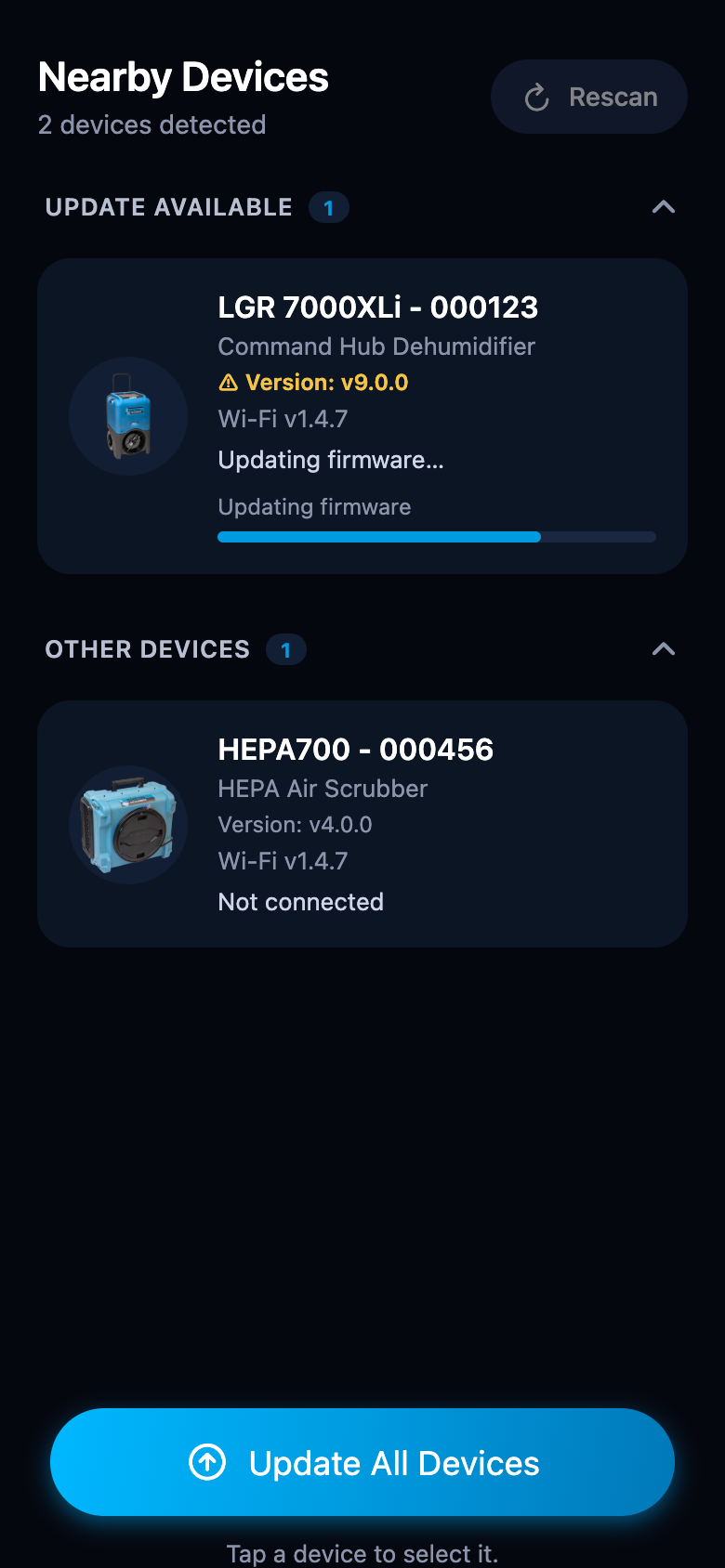
The firmware transfers. The status changes to "Updating firmware…" and a progress bar fills.
-
The device restarts to apply the update. The card border pulses amber while the app reconnects — this is normal. Keep the device powered on and the phone nearby.
-
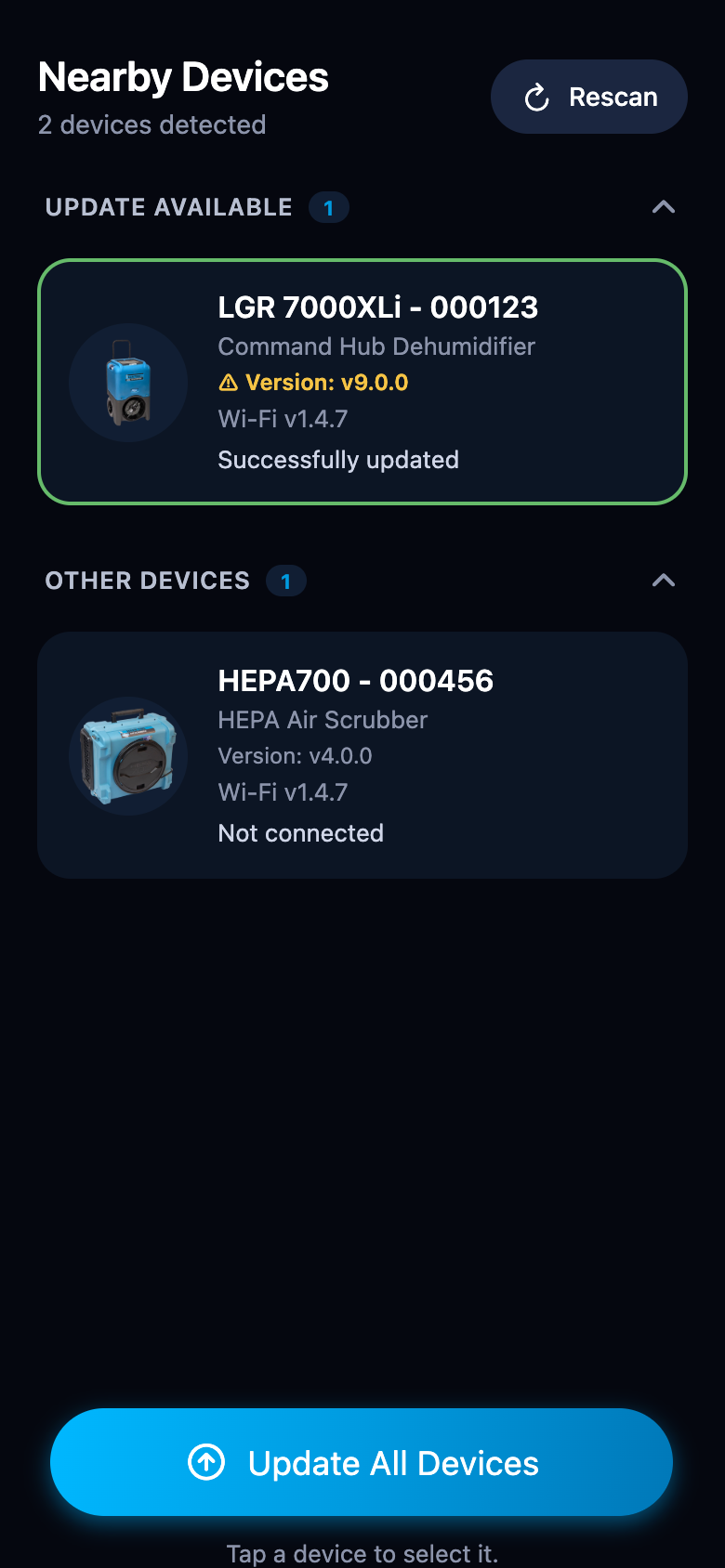
The app verifies the new version. On success the card flashes a green outline and reports "Successfully updated", then moves to Other Devices.
Keep everything powered and nearby
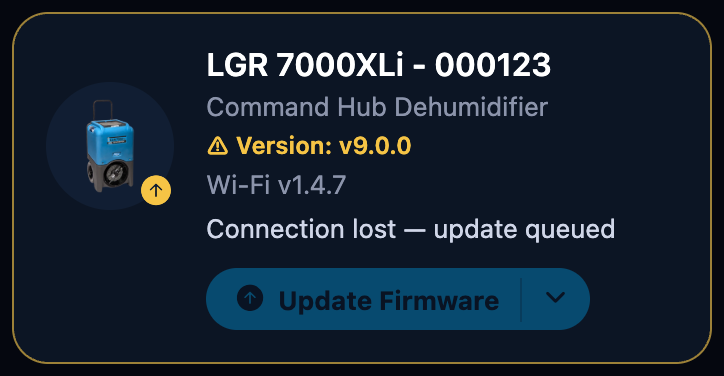
Do not power off the device or leave Bluetooth range during an update. If the connection drops, the card reports it and the app tries to reconnect and continue:
If an update fails
The card turns red and explains what happened:
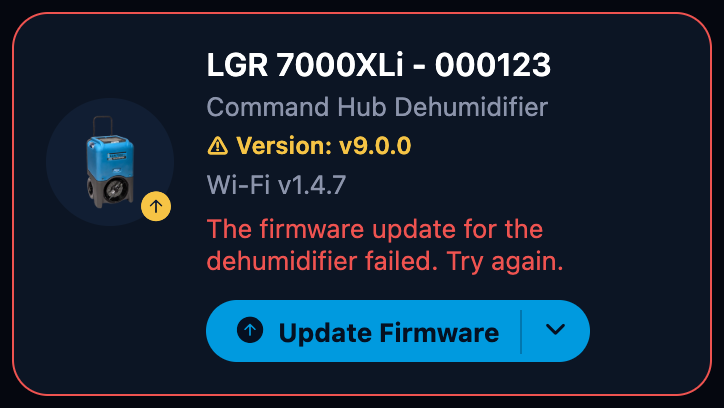
- Move closer to the device and tap Update Firmware again.
- If the device doesn't respond, power it off and back on, then tap Rescan and retry.
Wi-Fi module updates
Some updates refresh the device's Wi-Fi module. That update runs over your Wi-Fi network, so the app first opens the Wi-Fi Setup window to confirm the network — see Set up Wi-Fi.
The card then shows the stages one by one: "Setting up Wi-Fi", "Sending details", "Starting update", "Completing update", "Verifying version".