Find nearby devices
Before you start
Power on the Dri-Eaz device you want to check and keep it near your phone, and make sure Bluetooth is enabled on the phone. Not sure the unit is supported? Check the supported equipment table.
Scan for devices
-
Open Dri-Eaz Sync.
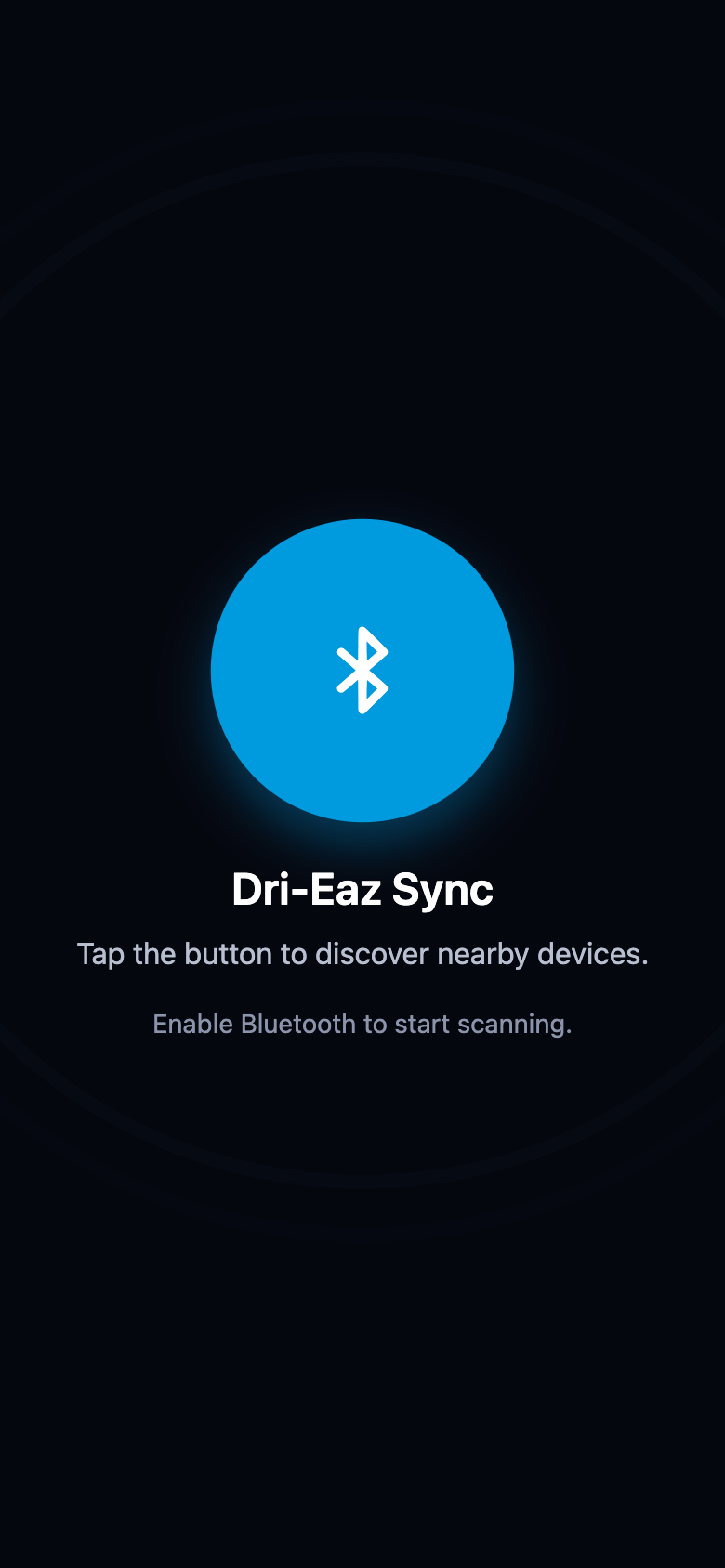
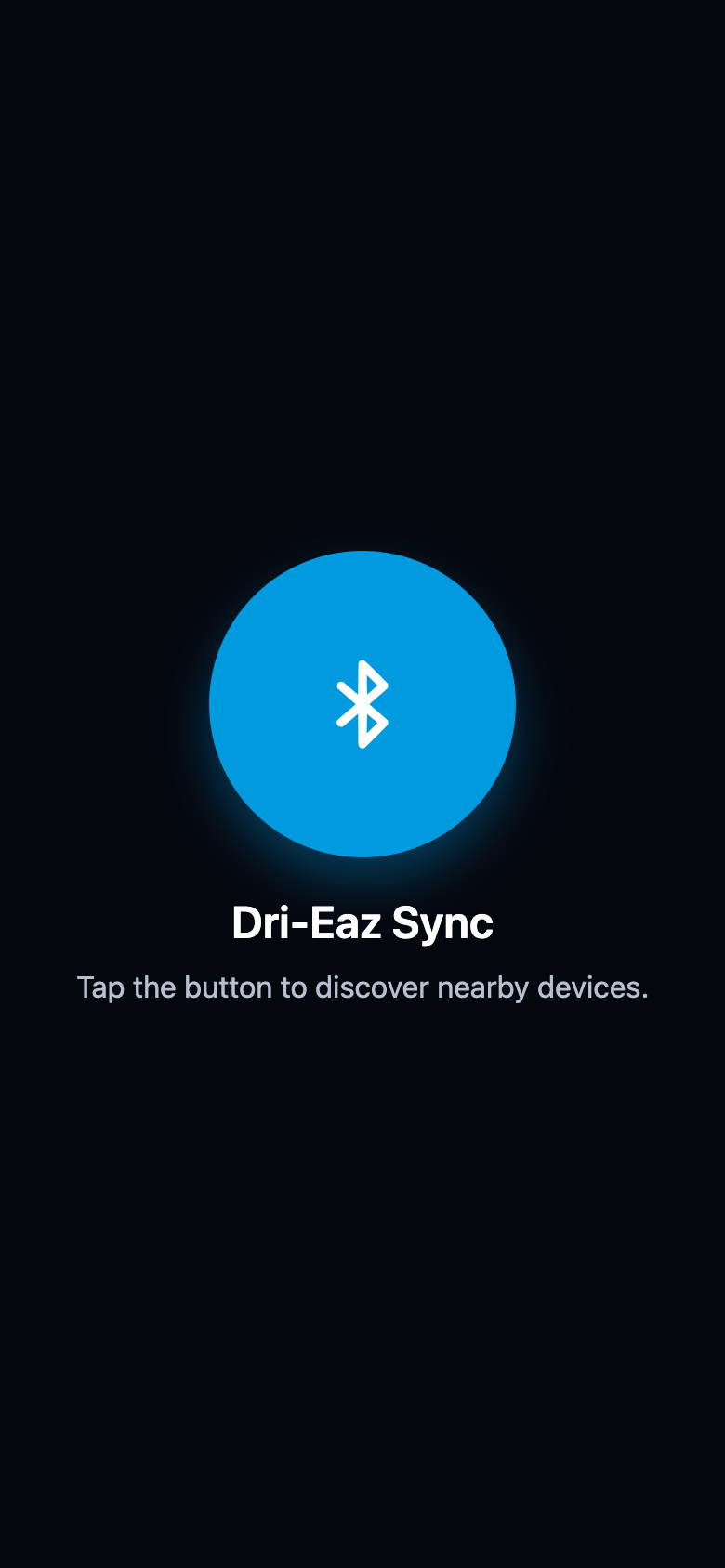
The app briefly shows "Getting things ready…", then the start screen appears: "Tap the button to discover nearby devices."
Tap Allow on the permission prompt
On first launch (or the first scan on iPhone), the phone asks for the app's Bluetooth permissions — Android also asks for location, which the system requires for nearby-device scanning. Tap Allow: the app cannot find equipment without it.
-
Tap the round blue Bluetooth button.
The app scans for a few seconds and switches to the Nearby Devices list.
-
Read the result.
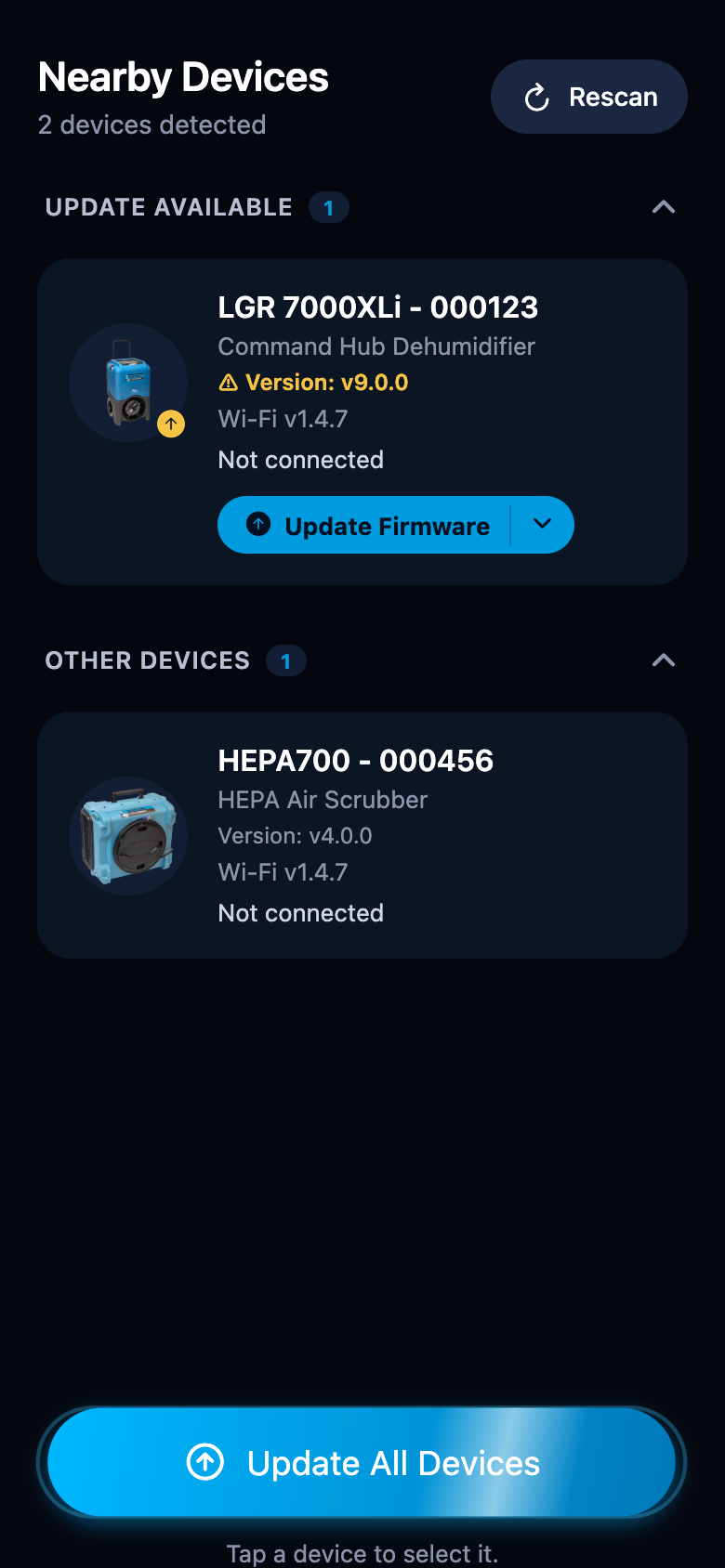
The header counts what was found — for example "2 devices detected" — in two groups:
- Update Available — devices with a firmware update ready to install.
- Other Devices — devices that are already up to date. Tap the section title to expand it.
Scan again
Tap Rescan in the top-right corner of the list to search again — for example after powering on another device.
If nothing is found
When the list stays empty, check that the device is powered on and close to the phone, then tap Rescan:
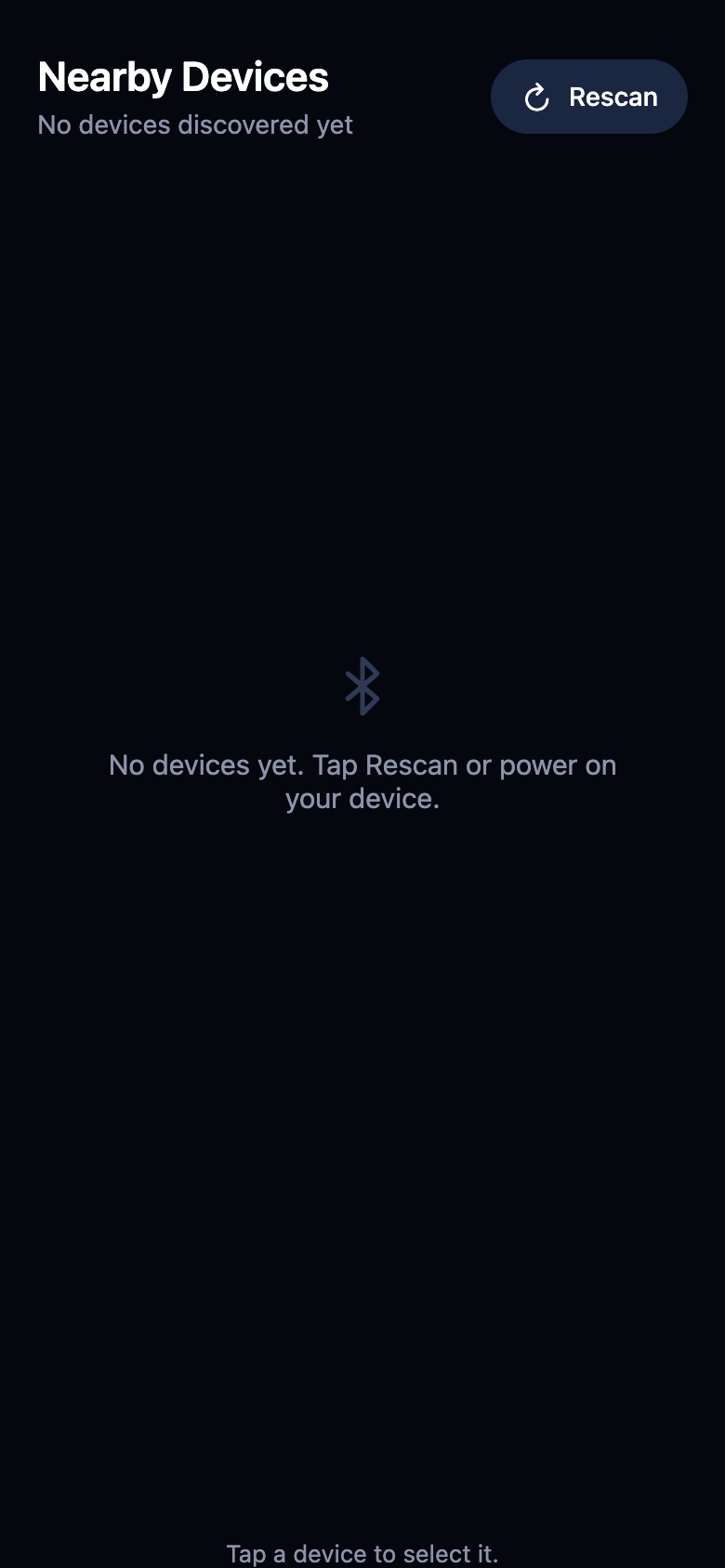
If a scan finds nothing at all, the app reports "No devices found. Make sure they are powered on and advertising, then try again."
If the permission was denied earlier, the app says so — "The app doesn't have Bluetooth permission. Allow Bluetooth access in Settings and try again." — and offers Open Settings. To re-enable it by hand:
- On iPhone: Settings → Dri-Eaz Sync → turn on Bluetooth.
- On Android: Settings → Apps → Dri-Eaz Sync → Permissions, then allow Nearby devices (and Location on older Android versions).
When Bluetooth is off, the start screen tells you before you even scan — a system dialog also offers Open Settings to enable it: